

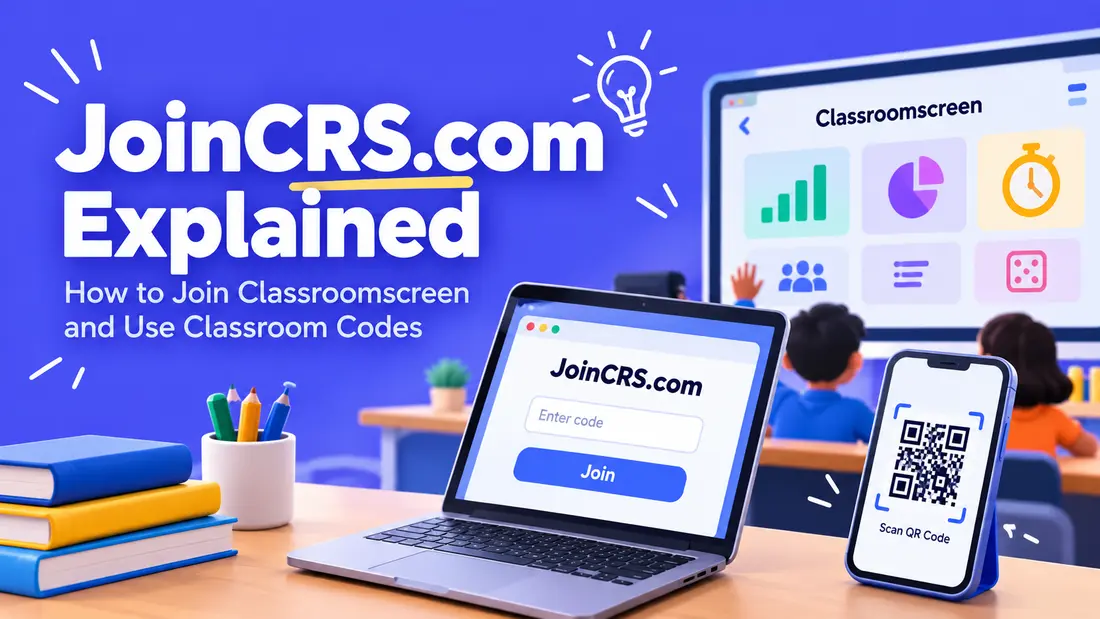
If your teacher has asked you to visit JoinCRS.com and enter a code, you may be wondering what the website actually does.
At first glance, it can look like another classroom platform where you need to create an account, download an app, or search through different menus. In reality, the process is much simpler.
JoinCRS com is mainly used as a student access point for Classroomscreen. Teachers can create interactive classroom activities through Classroomscreen, while students can use JoinCRS.com to take part in those activities.
You may be asked to enter a classroom code, open a joining link, or scan a QR code shown by your teacher.
Let’s look at how it works, what you can do on the site, and what to try if your code does not work.
What Is JoinCRS.com?
JoinCRS.com is a web-based joining page connected with Classroomscreen.
Classroomscreen is designed for teachers who want to add interactive activities to their lessons. These activities can include polls, quick questions, group activities, random name selection, timers, and other classroom tools.
JoinCRS com has a different job. It gives students a simple way to access an activity created by their teacher.
Think of it this way:
Classroomscreen is where the teacher creates the activity. JoinCRS.com is where the student joins it.
You do not normally need to install special software just to participate. A web browser is generally enough.
JoinCRS com is also different from a traditional learning management system such as Google Classroom, Canvas, or Moodle. It is mainly focused on quick classroom participation rather than managing an entire course.
How Does JoinCRS com Work?
The process is fairly simple.
Your teacher first creates an activity through Classroomscreen. This might be a poll, question, group activity, or another interactive classroom task.
You then receive the information needed to join.
Here’s what the process usually looks like:
- Your teacher opens Classroomscreen.
- The teacher creates a screen or interactive activity.
- An activity tool, such as a poll, is added.
- The teacher provides a code, link, or QR code.
- You open your browser and visit JoinCRS.com.
- You enter the code or use the supplied joining method.
- You take part in the activity.
For example, imagine your teacher is discussing a history topic and wants to know how many students remember a particular event. Instead of asking everyone to raise a hand, the teacher can create a quick poll.
You open JoinCRS.com, enter the code shown in class, and submit your answer.
The response can then be used by the teacher during the lesson.
Can You Use JoinCRS.com on a Phone?
In many classroom situations, students can use a phone or another device with an internet browser.
The exact experience depends on how the teacher has created the activity and which joining method is being used.
If your teacher displays a QR code, you may be able to scan it instead of typing the website address and code manually.
Can You Use JoinCRS.com During an Online Class?
Yes, JoinCRS.com can also be used during remote or hybrid lessons.
A teacher may share a Classroomscreen activity while teaching through an online meeting platform. Students can then use the joining information provided by the teacher to participate.
This can be useful during online lessons because students do not have to rely only on speaking or typing messages in the meeting chat.
What Can Students Do on JoinCRS com?
The exact options depend on the activity your teacher creates.
Students may be able to:
- Answer live polls
- Submit short responses
- Give opinions
- Take part in classroom checks
- Respond to lesson questions
- Join group activities
- Participate in online or hybrid lessons
- Access an activity through a QR code or joining link
The main idea is quick participation.
For instance, a teacher could ask, “How confident are you with today’s topic?” Students could submit their answers through an interactive activity.
The teacher gets quick feedback and can decide whether the class should move forward or spend more time on the topic.
Can Students Submit Assignments on JoinCRS com?
JoinCRS com is not presented as a full assignment-management system.
Its main purpose is to help students participate in activities created through Classroomscreen.
If your teacher wants you to submit a full assignment, upload a document, or access course materials, they may use another platform for that part of the class.
Does JoinCRS com Show Grades?
JoinCRS.com is not mainly designed as a gradebook.
It is focused on participation and classroom interaction. If your school uses a separate system for grades, assignments, attendance, or course files, you will likely continue using that system for those tasks.
Is JoinCRS.com Free?
For students, joining an activity is generally presented as a browser-based participation process rather than a separately paid service.
The Classroomscreen plan used by the teacher or school can affect which features are available.
This means you may be able to join an activity without paying anything yourself, while the teacher or school may have access to different Classroomscreen features based on its plan.
If you are looking for a current price, check the latest information provided by Classroomscreen because plans and features can change.
Does JoinCRS.com Require an Account?
Students normally join an activity using information provided by their teacher.
Depending on the activity, this may include:
- A classroom code
- A joining link
- A QR code
- A name or response identifier
You should not assume that every JoinCRS activity will show exactly the same screen.
One teacher may give you a code to type manually. Another may display a QR code. Someone else may send a direct joining link.
Teachers can have Classroomscreen accounts for creating and managing their classroom activities.
Students, however, generally use the joining method provided for the particular activity.
Is JoinCRS.com Safe to Use?
As with any website, it is worth paying attention to the address you are visiting and the information you are being asked to provide.
If your teacher tells you to use JoinCRS.com, make sure the website address is spelled correctly.
A few simple habits can help:
- Use the code given by your teacher or school.
- Do not post a private classroom code publicly.
- Check the website address before entering information.
- Do not enter payment information on a normal student activity page.
- Be careful if a page unexpectedly asks for a password.
- Do not install an unknown app or browser extension just to join an activity.
- Close the page when you are finished, especially on a shared computer.
A classroom code is not the same thing as your personal password.
If something looks unusual, stop and ask your teacher or school administrator before entering sensitive information.
JoinCRS.com vs. Classroomscreen
It is easy to confuse these two names because they work together.
The easiest way to remember the difference is:
Classroomscreen creates the classroom activity. JoinCRS.com helps students join it.
| Feature | JoinCRS.com | Classroomscreen |
|---|---|---|
| Main purpose | Student activity access | Teacher activity creation |
| Main user | Student or participant | Teacher or school |
| Typical action | Enter a code, open a link, or scan a QR code | Create polls, screens, groups, and timers |
| Account use | Depends on the activity | Teachers may create an account |
| Main role | Student participation | Classroom activity management |
So, if your teacher says, “Go to JoinCRS.com and enter this code,” you are being directed to the student side of the experience.
If the teacher is creating a poll or setting up a classroom screen, they are working through Classroomscreen.
How Teachers Use Classroomscreen With JoinCRS.com
Teachers can use Classroomscreen to make regular lessons more interactive.
Some common examples include:
Live Polls
A teacher can ask a question and collect responses from students in real time.
Quick Understanding Checks
After explaining a topic, the teacher can ask students a short question to see whether they understand it.
Student Feedback
Teachers can ask students for quick feedback at the end of a lesson.
Random Student Selection
Randomizer tools can help teachers select students during classroom activities.
Group Activities
Teachers can create groups for classroom tasks and collaborative work.
Timers
A classroom timer can help students know how much time remains for an activity.
Remote Lessons
Classroomscreen can also be used when teaching online or in a hybrid setup.
These activities can turn a passive lesson into something where students have a chance to respond instead of simply watching or listening.
How to Fix Common JoinCRS.com Problems
Sometimes the website or code may not work as expected. Before assuming something is wrong with your device, check the basic details first.
The JoinCRS Code Is Not Working
Try these steps:
- Check that you typed the code correctly.
- Make sure there are no extra spaces.
- Ask your teacher whether the activity has started.
- Check whether the session has ended.
- Look at the teacher’s screen for a newer code.
- Try entering the code again.
Codes are usually connected to a particular activity or session, so an old code may no longer work.
If you still cannot join, ask your teacher to display or provide the current joining information.
JoinCRS.com Is Not Loading
If the website does not open, try a few simple fixes:
- Refresh the page.
- Check your internet connection.
- Try another browser.
- Open the page in Chrome, Safari, Firefox, or Microsoft Edge.
- Temporarily disable a browser extension that may be blocking the page.
- Try another device.
- Try another network if available.
- Use the QR code or joining link provided by your teacher.
If the site works for other students but not on your device, the issue may be related to your browser, network, or device settings.
The Poll or Activity Is Not Showing
If you successfully joined but cannot see the expected activity, the teacher may not have started it yet.
The teacher may also have changed screens or selected a different joining method.
The quickest solution is usually to check with the teacher rather than searching online for a random classroom code.
The QR Code Is Not Working
QR codes can sometimes fail to scan because of the screen brightness, camera settings, or the distance between the camera and display.
Try these steps:
- Increase the brightness of the teacher’s screen.
- Move your phone slightly closer.
- Move it slightly farther away.
- Check whether your camera has permission to scan QR codes.
- Ask the teacher for the code so you can enter it manually.
If the QR code still does not work, manual entry may be the easiest option.
Frequently Asked Questions About JoinCRS.com
What is JoinCRS.com used for?
JoinCRS.com is mainly used by students to access and participate in interactive activities created through Classroomscreen.
Is JoinCRS.com part of Classroomscreen?
Yes. JoinCRS.com works as a student-facing access point connected with Classroomscreen.
How do I enter a JoinCRS code?
Open JoinCRS.com and enter the code provided by your teacher. If your teacher provides a QR code or direct link, you may be able to use that instead.
Can I join Classroomscreen without an account?
Students generally join activities through the information supplied by their teacher. The exact process can depend on the activity.
Can I use JoinCRS.com on my phone?
You can use a web browser on a compatible device when joining an activity. Your teacher may also provide a QR code for easier access.
Does JoinCRS.com require an app?
The supplied information describes JoinCRS.com as a browser-based access point. Students generally do not need to install a separate application just to participate.
Is JoinCRS.com free for students?
Students are generally able to join classroom activities without paying for a separate JoinCRS service. Available Classroomscreen features can depend on the teacher’s plan.
Can I join using a QR code?
Yes. A teacher may display a QR code that students can scan to access an activity.
Why is my JoinCRS code not working?
The code may have been entered incorrectly, the activity may not have started, or the session may have ended. Ask your teacher for the latest code if the problem continues.
Why is JoinCRS.com not loading?
Check your internet connection, refresh the page, try another browser or device, and use the teacher’s joining link or QR code if available.
Can teachers use JoinCRS.com?
JoinCRS.com is mainly designed as the student access point. Teachers use Classroomscreen to create and manage the activities students join.
Is JoinCRS.com a learning management system?
No. It is mainly a way for students to participate in interactive classroom activities rather than a complete learning management system.
Final Thoughts on JoinCRS com
JoinCRS.com is a simple student access point connected with Classroomscreen.
If your teacher gives you a JoinCRS code, there is usually no need to overthink the process. Open the website, use the joining information provided by your teacher, and take part in the activity.
Depending on the lesson, you may answer a poll, submit a response, join a group activity, or complete another quick classroom task.
The main difference to remember is simple:
Classroomscreen is used by teachers to create classroom activities, while JoinCRS.com helps students access those activities.
If a code does not work, the activity does not appear, or a QR code fails to scan, start with the basic troubleshooting steps above. And if something still looks wrong, your teacher is usually the best person to confirm the correct code or joining method.
Read Also: TheLaptopAdviser Expert Review: Is It a Reliable Laptop Review Website?